Feature-by-feature මාර්ගෝපදේශය
අවශ්ය කොටස පමණක් expand කරන්න හෝ instant search භාවිතා කරන්න.
1Home තිරයෙන් mileage, maintenance සහ shortcuts ඉක්මනින් බලන්න පුළුවන්.
2Android reminder notifications සහ quick snooze actions.
Screenshots scroll කරන්න • screen එක enlarge කිරීමට tap කරන්න
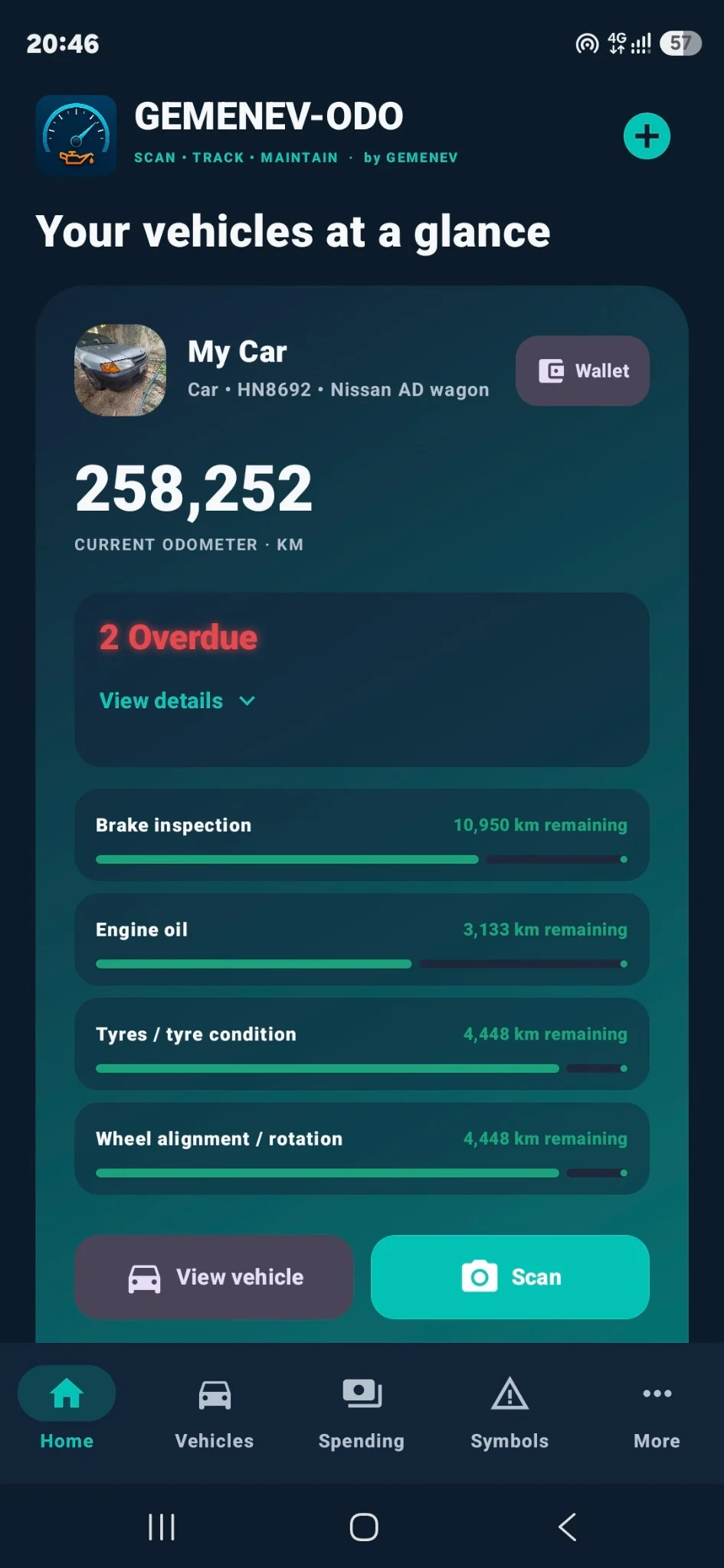
Home තිරය ඔබගේ vehicle එකට දැන් අවධානය අවශ්ය දේ ඉක්මනින් දක්වයි. Vehicle card එකේ odometer, overdue items, maintenance progress සහ Wallet, View vehicle, Scan shortcuts පෙන්විය හැක.
- Real vehicle එකක් නැත්නම් + තට්ටු කර vehicle එකක් එක් කරන්න.
- Overdue items පෙන්වුවොත් View details භාවිතා කරන්න.
- සම්පූර්ණ vehicle record එක සඳහා View vehicle තට්ටු කරන්න.
- Odometer එක update කිරීමට Scan හෝ Vehicle screen එක භාවිතා කරන්න.
- Mileage සහ overdue reminders අවශ්ය නම් Android notifications සඳහා අවසර දෙන්න.
හොඳ පුරුද්දක්: odometer එක නිතර update කරන්න. Distance-based maintenance සහ reminders එය මත රඳා පවතී.
1Home තිරයේ read-only sample vehicle එක.
2Sample Tour: vehicle overview.
3Sample Tour: maintenance cards සහ actions.
4Sample Tour: documents සහ renewal states.
5Sample Tour: odometer සහ vehicle activity.
6Sample Tour: Quick Wallet විස්තරය.
Screenshots scroll කරන්න • screen එක enlarge කිරීමට tap කරන්න
Sample Tour යනු fictional vehicle data භාවිතා කරන read-only walkthrough එකකි. එය Free vehicle slot එකක් භාවිතා නොකර app interface එක පරීක්ෂා කිරීමට ඉඩ දෙයි.
- Real vehicle එකක් add කිරීමට පෙර පෙන්වන prompt එකෙන් හෝ Help තුළින් Sample Tour ආරම්භ කරන්න.
- Vehicle overview, Maintenance, Documents & renewals, Odometer & activity, Quick Wallet හරහා යන්න.
- Tour එකේ buttons ඔබගේ own vehicle එකේ actions තිබෙන තැන් පෙන්වයි, නමුත් sample data වෙනස් නොවේ.
- අවසන් වූ විට Finish tour තට්ටු කරන්න.
1Vehicles ලැයිස්තුව: vehicle එකක් විවෘත කරන්න හෝ + මගින් අලුත් එකක් එක් කරන්න.
2Add vehicle: name, registration, type, powertrain සහ transmission.
3Add vehicle: region, odometer සහ initial oil baseline.
4Add vehicle: service interval defaults, notes සහ Save vehicle.
5Vehicle view: odometer, Scan/Manual controls සහ maintenance.
Screenshots scroll කරන්න • screen එක enlarge කිරීමට tap කරන්න
Vehicle එකක් add කිරීම
- Vehicles විවෘත කර + තට්ටු කරන්න.
- Vehicle name එක ඇතුළත් කරන්න. Registration සහ make/model/year optional නමුත් ප්රයෝජනවත්.
- නිවැරදි Vehicle type, Powertrain, Transmission සහ drive system තෝරන්න.
- Renewal-template region එක තෝරා starting odometer එක ඇතුළත් කරන්න.
- Combustion vehicle සඳහා initial engine-oil baseline සහ interval/warning values සකස් කරන්න.
- අවශ්ය නම් photo/notes එක් කර Save vehicle තට්ටු කරන්න.
Vehicles list එකෙන් vehicle එක තට්ටු කර full record එක විවෘත කරන්න. Pencil icon එකෙන් profile edit කළ හැක.
1Camera odometer scanner එකේ adjustable target rectangle.
2Camera නොමැති විටත් Manual odometer entry භාවිතා කළ හැක.
3Vehicle view එකේ Documents & renewals සහ recent odometer history.
Screenshots scroll කරන්න • screen එක enlarge කිරීමට tap කරන්න
Camera scan
- Vehicle එක විවෘත කර Scan තට්ටු කරන්න.
- Odometer digits target rectangle එක තුළ තබන්න.
- අවශ්ය නම් target position, width, height සකස් කරන්න. Saved scanner preset එක නැවත භාවිතා කළ හැක.
- Capture & analyze තට්ටු කර detected reading එක review කර confirm කරන්න.
Manual entry
- Manual තට්ටු කරන්න.
- Reading එක type කර save කරන්න.
Camera permission නැති විටත් manual entry සෑම විටම තිබේ.
1Vehicle view: odometer, Scan/Manual controls සහ maintenance.
2Healthy maintenance items වල remaining time/distance පෙන්වයි.
3Engine oil සහ filters ඇතුළු තවත් maintenance items.
4Tyres, alignment වැනි items සඳහාත් Configure/Record service flow එකමයි.
Screenshots scroll කරන්න • screen එක enlarge කිරීමට tap කරන්න
Maintenance cards වල status, remaining distance/time සහ progress bar පෙන්වයි.
- Vehicle එක විවෘත කරන්න.
- අදාළ maintenance item එක සොයන්න. Interval/warning වෙනස් කිරීමට Configure භාවිතා කරන්න.
- Service එක අවසන් වූ පසු Record service තට්ටු කරන්න.
- Date, odometer සහ අදාළ costs/details ඇතුළත් කර save කරන්න.
- Standard list එකේ නැති item සඳහා + Add custom භාවිතා කරන්න.
1Vehicle view එකේ Documents & renewals සහ recent odometer history.
- Vehicle එක විවෘත කර Documents & renewals වෙත scroll කරන්න.
- Existing renewal එකක් හෝ + Add custom තට්ටු කරන්න.
- Document name සහ expiry date සකස් කරන්න.
- අවශ්ය නම් copy එක attach කරන්න.
- Home card එකෙන් ඉක්මනින් ලබාගැනීමට Show in Quick Wallet enable කරන්න.
Legal requirements සම්බන්ධයෙන් අදාළ authority/insurer සමඟ සනාථ කරන්න.
1Quick Wallet තුළ පෙන්වන්නේ fast access සඳහා marked documents පමණයි.
- Home vehicle card එකේ Wallet තට්ටු කරන්න.
- Show in Quick Wallet enabled කර ඇති documents පමණක් පෙන්වයි.
- Eye/view icon එකෙන් document එක විවෘත කරන්න.
- Manage this vehicle's documents භාවිතා කර wallet එකේ පෙන්වන දේ වෙනස් කරන්න.
1Spending overview එකෙන් එක් එක් vehicle එකේ totals සහ records සාරාංශ කරයි.
2Fuel සහ service records vehicle spending history එකේ එකට පෙන්වයි.
3Add vehicle spending: record type, description, date සහ part/service details.
4Saved supplier/garage එකක් තෝරා price components ඇතුළත් කරන්න.
5Warranty shortcuts, notes සහ receipt/invoice attachment.
6Receipt එක camera, gallery හෝ PDF file එකකින් attach කරන්න.
Screenshots scroll කරන්න • screen එක enlarge කිරීමට tap කරන්න
Spending tab එක service, parts, fuel සහ වෙනත් vehicle costs එකතු කර totals පෙන්වයි.
- Spending විවෘත කර vehicle එක තෝරා + තට්ටු කරන්න.
- Record type, description, date සහ odometer ඇතුළත් කරන්න.
- Parts/replacement සඳහා part/service item, brand, part number අවශ්ය නම් ඇතුළත් කරන්න.
- Saved supplier/garage එකක් තෝරන්න හෝ details type කරන්න.
- Parts, labour සහ other costs ඇතුළත් කරන්න.
- Warranty, notes සහ receipt/invoice optional ලෙස එක් කරන්න.
- Receipt එක camera, gallery හෝ PDF එකකින් attach කළ හැක.
1Add fuel: date, odometer, quantity, cost, fuel grade සහ Full tank.
2Form එකේ පහළින් notes සහ optional fuel receipt attachment ඇත.
3Fuel සහ service records vehicle spending history එකේ එකට පෙන්වයි.
Screenshots scroll කරන්න • screen එක enlarge කිරීමට tap කරන්න
Fuel add කිරීම
- Vehicle එකේ fuel action එක විවෘත කරන්න.
- Date සහ odometer පරීක්ෂා කරන්න.
- Fuel volume unit තෝරා quantity සහ total cost ඇතුළත් කරන්න.
- Fuel type/grade confirm කර optional fuel station එක ඇතුළත් කරන්න.
- Tank එක repeatable full level එකකට පිරවූ විට පමණක් Full tank on තබන්න.
- Notes හෝ fuel receipt attach කර save කරන්න.
EV-capable vehicle සඳහා charging flow එක energy quantity සහ cost record කිරීමට පෙන්වයි.
1Destination, dates, expected distance සහ reminders සමඟ trip එක plan කරන්න.
2Upcoming trips වල readiness progress සහ remaining checks පෙන්වයි.
Screenshots scroll කරන්න • screen එක enlarge කිරීමට tap කරන්න
- More → Trips විවෘත කර + තට්ටු කරන්න.
- Trip name, destination, departure date/time, expected distance සහ return date ඇතුළත් කරන්න.
- අවශ්ය නම් day-before සහ pre-departure reminders enable කරන්න.
- Trip එක create කළ පසු list එක readiness progress සහ remaining checks පෙන්වයි.
- Departure එකට පෙර trip එක විවෘත කර checks සම්පූර්ණ කරන්න.
- Trip අවසන් වූ පසු complete කර applicable direct cost record කරන්න.
1Offline dashboard-symbol library එක search සහ browse කරන්න.
- Symbols විවෘත කරන්න.
- battery, DPF හෝ car skidding වැනි term එකක් type කරන්න හෝ category filter එකක් භාවිතා කරන්න.
- Symbol card එක විවෘත කර වැඩි විස්තර බලන්න.
Dashboard symbols සහ colours vehicle අනුව වෙනස් විය හැක. Exact meaning සඳහා owner's manual එක බලන්න.
1Reports overview: totals, distance, cost/km, service count සහ status.
2Report trends, spending breakdown, energy summary සහ PDF/CSV export.
Screenshots scroll කරන්න • screen එක enlarge කිරීමට tap කරන්න
- More → Reports විවෘත කරන්න.
- Vehicle එකක් හෝ All vehicles තෝරා report period එක තෝරන්න.
- Total spend, distance, cost/km, service count සහ maintenance/renewal status බලන්න.
- Monthly spending, category breakdown සහ energy summary සඳහා scroll කරන්න.
- PDF shareable report සඳහාත් CSV spreadsheet analysis සඳහාත් භාවිතා කරන්න.
1Shops & garages තුළ වැදගත් vehicle contacts තබාගන්න.
- More → Shops & garages විවෘත කරන්න.
- + තට්ටු කර garage, parts store හෝ වෙනත් contact එකක් එක් කරන්න.
- Business name, category, contact person, phone/WhatsApp details ඇතුළත් කරන්න.
- Save කළ පසු search, Call හෝ WhatsApp භාවිතා කළ හැක.
- Spending record එකක් ඇතුළත් කරන විට saved supplier/garage තෝරාගත හැක.
1Appearance, accent, visual effects, currency සහ energy units.
2Mileage, overdue reminders සහ new-vehicle defaults.
3Android reminder notifications සහ quick snooze actions.
Screenshots scroll කරන්න • screen එක enlarge කිරීමට tap කරන්න
- Appearance: System, Dark, Light, accent theme සහ visual effects.
- Vehicle expense currency: costs enter/summarise කරන currency.
- Energy tracking units: fuel සහ EV efficiency units.
- Mileage check reminder: odometer update එකක් නොමැති දින ගණනකට පසු remind කළ හැක.
- Overdue reminders: reminder time සහ snooze shortcuts.
- New vehicle defaults: initial oil interval සහ warnings.
Scheduled reminders පෙන්වීමට Android notification permission අවශ්යය.
1Storage & privacy තුළ complete backup සහ validated restore controls ඇත.
Backup එකක් සාදන්න
- More → Settings → Storage & privacy වෙත යන්න.
- Export complete backup තට්ටු කරන්න.
- අවශ්ය නම් password protection තෝරන්න.
- Android file picker එකෙන් save location තෝරන්න.
Restore
- Restore from backup තට්ටු කර GEMENEV-ODO backup file එක තෝරන්න.
- Password-protected නම් password එක ඇතුළත් කරන්න.
- Device data replace කිරීමට පෙර validation summary එක review කරන්න.
1Lifetime Pro status සහ feature comparison.
- More → GEMENEV-ODO Pro විවෘත කරන්න.
- Google Play product/price load වන තුරු රැඳී සිටින්න.
- Purchase කර නැත්නම් Buy Lifetime Pro භාවිතා කරන්න.
- එම eligible Google Play account එකෙන් කලින් purchase කර ඇත්නම් Restore purchase භාවිතා කරන්න.
Lifetime Pro subscription එකක් නොවේ. එය one-time purchase එකකි.
1Built-in Help & user guide app එක තුළම ඇත.
2Feedback තුළ bug reports, feature requests සහ වෙනත් issue types ඇත.
3About තිරයේ installed version, publisher සහ Privacy Policy link පෙන්වයි.
Screenshots scroll කරන්න • screen එක enlarge කිරීමට tap කරන්න
- Help & user guide: app තුළම ඇති quick instructions සහ scanner tutorial.
- Feedback: Bug report, Feature request, General feedback, OCR recognition issue හෝ Missing dashboard symbol තෝරන්න. Email app එක විවෘත වූ පසු screenshots/videos ඔබම attach කළ හැක.
- About: app version, publisher/developer info සහ Privacy Policy link පෙන්වයි.
මෙම web guide එක GEMENEV-ODO 1.0.0 සඳහායි.
ගැළපෙන guide එකක් හමු නොවීය. fuel, backup, service හෝ Pro වැනි කෙටි term එකක් උත්සාහ කරන්න.