About the screenshots: every app image on this page is from the real GEMENEV-ODO interface. Screens marked as Sample Tour use fictional tutorial data inside the app.
New to GEMENEV-ODO? Start here.
Six small steps will get the app into a useful state without turning setup into a paperwork marathon.
Local-firstCore vehicle data is kept on the device, with user-controlled manual backup and restore.
Free backupManual backup and restore are included in the Free plan.
One-time ProLifetime Pro uses Google Play and is not a subscription.
Feature-by-feature guide
Expand only what you need, or use the instant search to jump directly to an answer.
1Home gives a quick view of mileage, maintenance and shortcuts.
2Android reminder notifications with quick snooze actions.
Swipe / scroll screenshots • tap a screen to enlarge
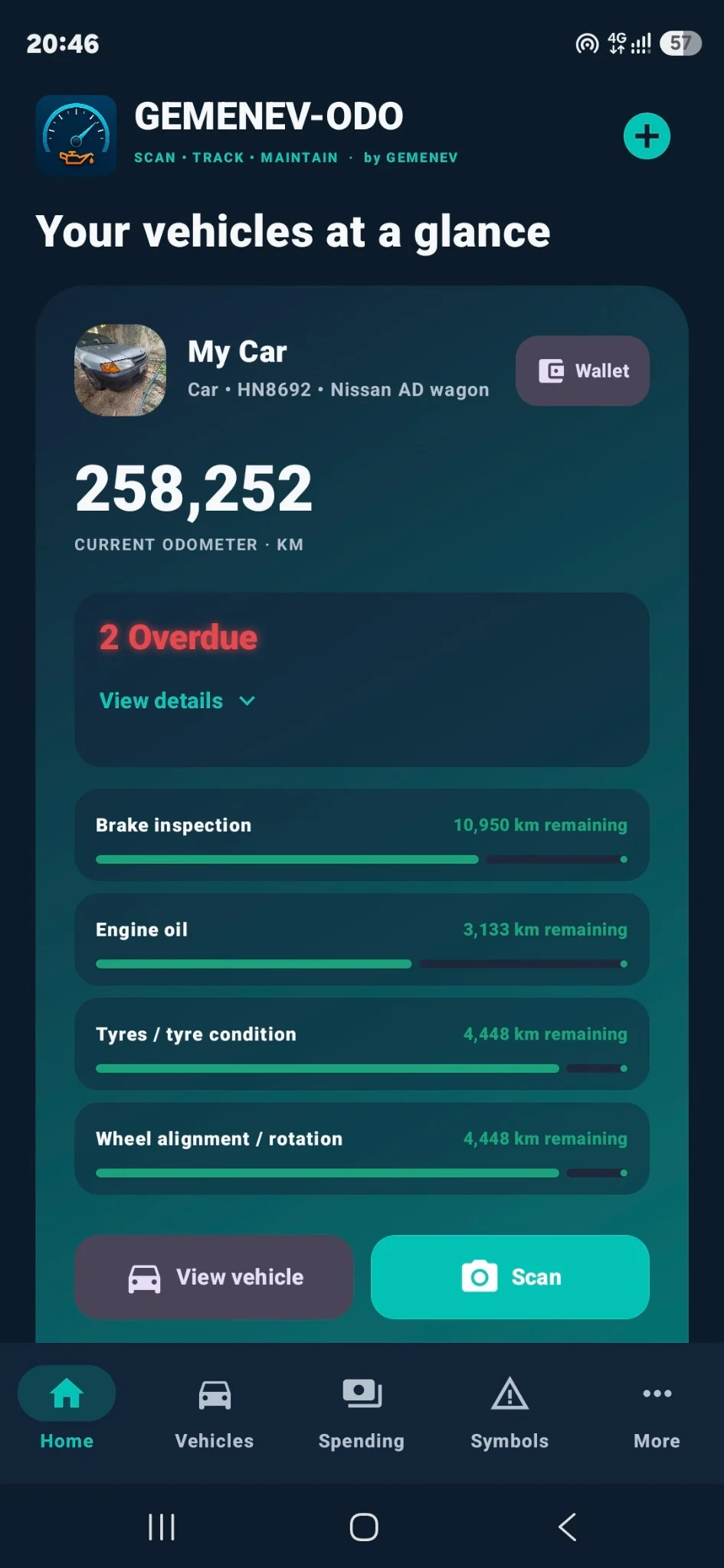
The Home screen is the fastest way to see what needs attention. Each vehicle card can show the odometer, overdue items, selected maintenance progress and shortcuts such as Wallet, View vehicle and Scan.
If no real vehicle exists yet, tap + and create one.
Use View details when a card shows overdue items.
Use View vehicle to open the complete vehicle record.
Use Scan or the vehicle screen to keep the odometer current.
Allow Android notifications if you want mileage and overdue reminders. Reminder notifications can include quick snooze buttons.
Good habit: keep the odometer reasonably current. Distance-based maintenance and reminder accuracy depend on it.
1The read-only sample vehicle on Home.
2Sample Tour: vehicle overview.
3Sample Tour: maintenance cards and actions.
4Sample Tour: documents and renewal states.
5Sample Tour: odometer and vehicle activity.
6Sample Tour: Quick Wallet explanation.
Swipe / scroll screenshots • tap a screen to enlarge
The Sample Tour is a read-only walkthrough using fictional vehicle data. It lets you explore the actual interface without consuming a Free vehicle slot or changing your records.
Open the Sample Tour from the prompt shown before you add a real vehicle, or replay it from Help when available.
Move through Vehicle overview, Maintenance, Documents & renewals, Odometer & activity and Quick Wallet.
Buttons inside the tour explain where actions exist in your own vehicle while keeping the sample read-only.
Tap Finish tour when done, or × to leave early.
1Vehicles list: open a vehicle or use + to add one.
2Add vehicle: name, registration, type, powertrain and transmission.
3Add vehicle: region, odometer and initial oil baseline.
4Add vehicle: service interval defaults, notes and Save vehicle.
5Vehicle view: odometer, Scan/Manual controls and maintenance.
Swipe / scroll screenshots • tap a screen to enlarge
Add a vehicle
Open Vehicles and tap +.
Enter a vehicle name. Registration and make/model/year are optional but useful.
Choose the correct Vehicle type, Powertrain, Transmission and drive system. These choices help GEMENEV-ODO suggest relevant maintenance.
Select the renewal-template region and enter the starting odometer.
For combustion vehicles, enter the initial engine-oil baseline and adjust the default interval/warning values if needed.
Add a photo or notes if useful, then tap Save vehicle.
Open or edit a vehicle
Tap a vehicle from the Vehicles list to open the full record. Use the pencil icon to edit the profile later.
Free plan: one real vehicle. Lifetime Pro removes the vehicle-creation limit.
1Camera odometer scanner with adjustable target rectangle.
2Manual odometer entry is always available as a fallback.
3Vehicle view showing Documents & renewals and recent odometer history.
Swipe / scroll screenshots • tap a screen to enlarge
Camera scan
Open a vehicle and tap Scan.
Point the camera at the odometer and keep the digits inside the target rectangle.
If needed, adjust the target position, width or height. A saved scanner preset can be reused for that vehicle.
Tap Capture & analyze, review the detected reading and confirm it before saving.
Manual entry
Tap Manual.
Type the odometer reading and save it.
The reading is added to odometer history with its source.
Camera is never mandatory: manual entry remains available when permission is denied, the display cannot be read, or you simply prefer typing.
1Vehicle view: odometer, Scan/Manual controls and maintenance.
2Healthy maintenance items show remaining time or distance.
3More maintenance items, including engine oil and filters.
4Tyres, alignment and other service items use the same Configure/Record service flow.
Swipe / scroll screenshots • tap a screen to enlarge
Maintenance cards show status, remaining distance/time and a progress bar. Red indicates overdue attention, while healthy items show remaining distance or days.
Open the vehicle.
Find the maintenance item you need. Use Configure to change its interval, warnings or applicability.
After work is completed, tap Record service.
Enter the service date, odometer and any relevant costs/details. Saving the service updates the next due point and vehicle history.
Use + Add custom when you need a maintenance item that is not in the standard list.
Tip: the list is vehicle-aware, so the maintenance library changes with the profile you selected.
1Vehicle view showing Documents & renewals and recent odometer history.
Open a vehicle and scroll to Documents & renewals.
Tap an existing renewal or + Add custom.
Set the document name and expiry date where applicable.
Attach a copy if you want it stored with the vehicle.
Enable Show in Quick Wallet for documents you want available from the Home card.
Expired items are shown clearly and can contribute to overdue reminders.
Reminder: GEMENEV-ODO helps you track dates; always confirm legal requirements with the relevant authority or insurer.
1Quick Wallet shows only documents marked for fast access.
From Home, tap Wallet on the vehicle card.
The Quick Wallet opens only the documents that have Show in Quick Wallet enabled.
Tap the eye/view icon to open a saved document.
Use Manage this vehicle's documents to change what appears in the wallet.
Quick Wallet is designed for fast roadside access. Documents not marked for Quick Wallet stay hidden here.
1Spending overview summarises totals and records for each vehicle.
2Fuel and service records appear together in vehicle spending history.
3Add vehicle spending: record type, description, date and part/service details.
4Choose a saved supplier or garage and enter price components.
5Warranty shortcuts, notes and receipt/invoice attachment.
6Attach a receipt using the camera, gallery or a PDF file.
Swipe / scroll screenshots • tap a screen to enlarge
Review spending
The Spending tab combines service, parts, fuel and other vehicle costs and shows totals per vehicle.
Add a cost
Open Spending, choose the vehicle and tap +.
Select the record type, then add a description, date and odometer.
For parts/replacement records, add the part/service item, brand or part number if useful.
Select a saved supplier or garage, or type the details manually.
Enter parts, labour and other costs. GEMENEV-ODO calculates the total.
Optionally add warranty information, notes and a receipt/invoice.
Receipts can be added from the camera, gallery or a PDF file.
1Add fuel: date, odometer, quantity, cost, fuel grade and Full tank.
2Fuel notes and optional receipt attachment are available lower in the form.
3Fuel and service records appear together in vehicle spending history.
Swipe / scroll screenshots • tap a screen to enlarge
Add fuel
Open the fuel action for the vehicle.
Check the date and odometer.
Select the fuel volume unit, then enter quantity and total cost.
Confirm the fuel type/grade and optionally record the fuel station.
Leave Full tank enabled only when the tank was filled to a repeatable full level. Partial fills are retained and included until the next full tank.
Add notes or attach a fuel receipt if useful, then save.
EV charging
EV-capable vehicle profiles expose the corresponding charging flow for energy quantity and cost. Reports use the energy units configured in Settings.
1Plan a trip with destination, dates, expected distance and reminders.
2Upcoming trips show readiness progress and checks remaining.
Swipe / scroll screenshots • tap a screen to enlarge
Open More → Trips and tap +.
Enter a trip name, destination, departure date/time, expected distance and return date.
Enable the day-before and pre-departure reminders if wanted.
Create the trip. The Trips list shows readiness progress and the number of checks remaining.
Open the trip before departure and work through the readiness checks.
After the trip, complete it and record direct trip cost when applicable. GEMENEV-ODO keeps the related spending record synchronized.
1Search and browse the offline dashboard-symbol library.
Open Symbols.
Type a term such as battery, DPF or car skidding, or use a category filter.
Open a symbol card to read more detail and suggested next steps.
Important: dashboard symbols and colours vary by vehicle. Use the library as general guidance and check the owner's manual for the exact meaning. Camera symbol recognition is not enabled in the current release.
1Reports overview: totals, distance, cost/km, service count and status.
2Report trends, spending breakdown, energy summary and PDF/CSV export.
Swipe / scroll screenshots • tap a screen to enlarge
Open More → Reports.
Select a vehicle or All vehicles and choose the report period.
Review total spend, distance, cost/km, service count and maintenance/renewal status.
Scroll for monthly spending, category breakdown and energy summary.
Use PDF for a shareable vehicle record, or CSV for spreadsheet analysis.
1Shops & garages keeps useful vehicle contacts close at hand.
Open More → Shops & garages.
Tap + to add a garage, parts store or other vehicle contact.
Add the business name, category, contact person and phone/WhatsApp information as needed.
Save it. You can search contacts later and use Call or WhatsApp directly.
Saved suppliers/garages can also be selected while entering spending records.
1Appearance, accent, visual effects, currency and energy units.
2Mileage, overdue reminders and new-vehicle defaults.
3Android reminder notifications with quick snooze actions.
Swipe / scroll screenshots • tap a screen to enlarge
Appearance: choose System, Dark or Light; select the accent theme and visual-effect strength.
Vehicle expense currency: controls how costs are entered and summarised.
Energy tracking units: controls fuel and EV efficiency units.
Mileage check reminder: can remind you after a chosen number of days without an odometer update.
Overdue reminders: configure reminder time and snooze shortcuts.
New vehicle defaults: set initial oil interval and warning values used when creating combustion vehicles.
Android notification permission must be allowed for scheduled reminders to appear.
1Storage & privacy contains complete backup and validated restore controls.
Create a backup
Open More → Settings and scroll to Storage & privacy.
Tap Export complete backup.
Choose password protection if you want it.
Use Android's file picker to choose where the backup is saved.
Keep a copy somewhere you can reach if the phone is reset, lost or replaced.
Restore
Tap Restore from backup and choose the GEMENEV-ODO backup file.
Enter the password if the file is protected.
Review the validation summary before allowing the app to replace data on the device.
Included in Free: manual backup and restore. Backups can include vehicles, history, settings and imported attachments. Lifetime Pro entitlement is never copied into a backup.
1Lifetime Pro status and feature comparison.
Open More → GEMENEV-ODO Pro.
Wait for Google Play to load the product and price for your account/region.
If you have not purchased it, use Buy Lifetime Pro to start the Google Play flow.
If you already purchased with the same eligible Google Play account, use Restore purchase.
Lifetime Pro is a one-time purchase, not a subscription. The app shows the final price supplied by Google Play.
1The built-in Help & user guide is available inside the app.
2Feedback supports bug reports, feature requests and other issue types.
3About shows the installed version, publisher and Privacy Policy link.
Swipe / scroll screenshots • tap a screen to enlarge
Help & user guide: quick in-app instructions, including the odometer scanner tutorial.
Feedback: choose Bug report, Feature request, General feedback, OCR recognition issue or Missing dashboard symbol. Your email app opens so you can review the message and attach screenshots/videos yourself.
About: shows the app version, publisher/developer information and the Privacy Policy link.
This web guide covers GEMENEV-ODO 1.0.0.
No matching guide found. Try a shorter term such as fuel, backup, service or Pro.
Need more help?
Use the in-app Help & user guide or Feedback & feature requests under More.